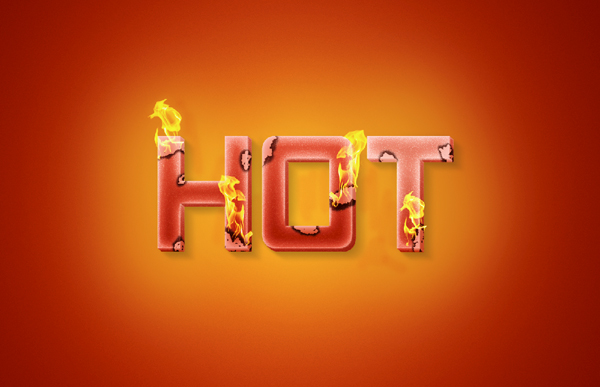
As Halloween approaches we bring you a hell-like burning text effect! Enjoy the
tutorial!
Final Image
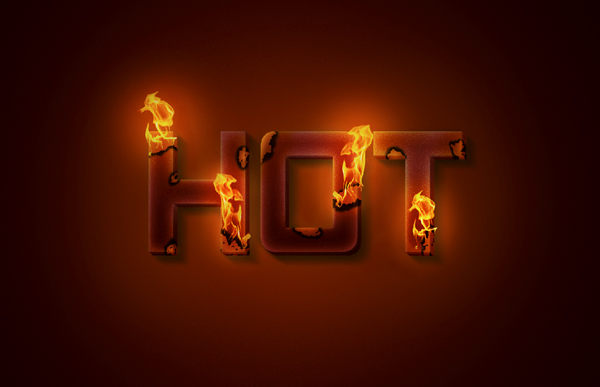
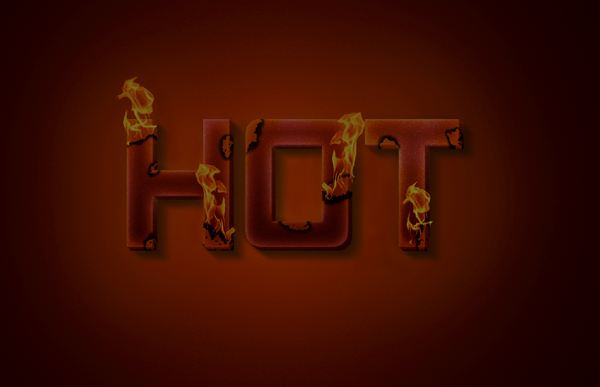
As always, this is the final image that we’ll be creating:
 title="Create a Unique Burning Text Effect" alt="burn34 Create a Unique Burning Text
Effect" />
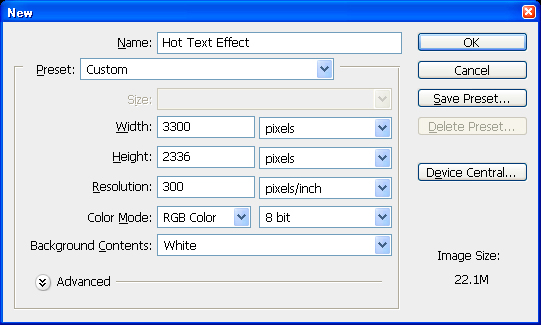
So let’s start with a new document of 3300 px width and 2336 px height at 300
resolutions. I created large document because I wanted to print it on A4 size.
 title="Create a Unique Burning Text Effect" alt="burn1 Create a Unique Burning Text
Effect" />
Step 2
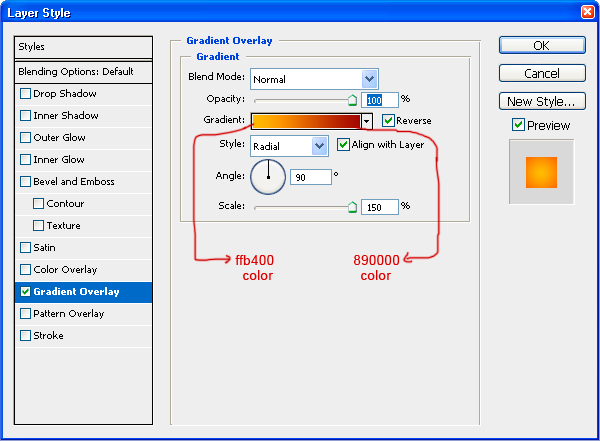
Press U and select rectangle tool and create a rectangle of document size and apply
gradient overlay with colors 890000 & ffb400. Now select transform tool and
increase rectangle size from document size to 4515 px width and 3196px height.
 title="Create a Unique Burning Text Effect" alt="burn2 Create a Unique Burning Text
Effect" />
 title="Create a Unique Burning Text Effect" alt="burn3 Create a Unique Burning Text
Effect" />
Duplicate the rectangle and apply 10% transparency with normal mode. Your
gradient will automatically transform and results will be like this.
Step 3
Now select type tool and write letter “H”. Font is your choice but I used here font
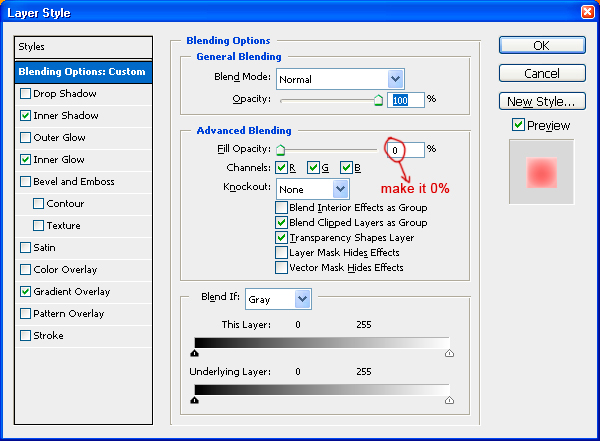
Akashi of 180 pt weight. Go to the layer style option and reduce the Fill Opacity to zero
in Advanced Blending. Now apply these layer styles.
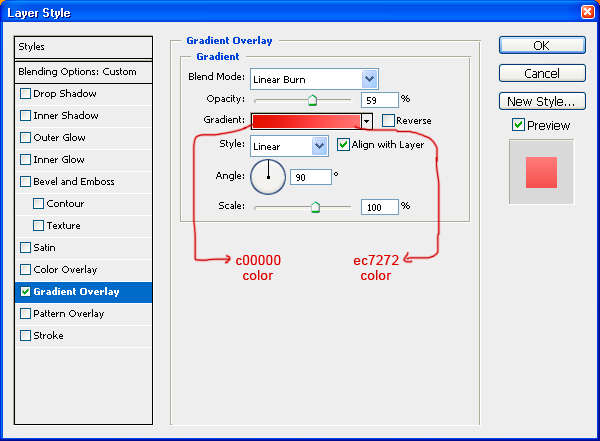
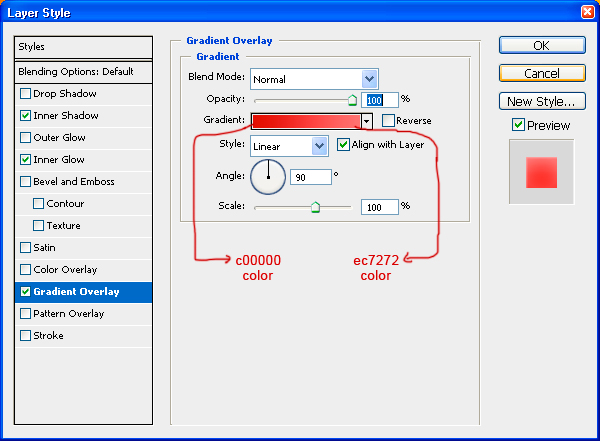
Gradient overlay: color c00000 & ec7272
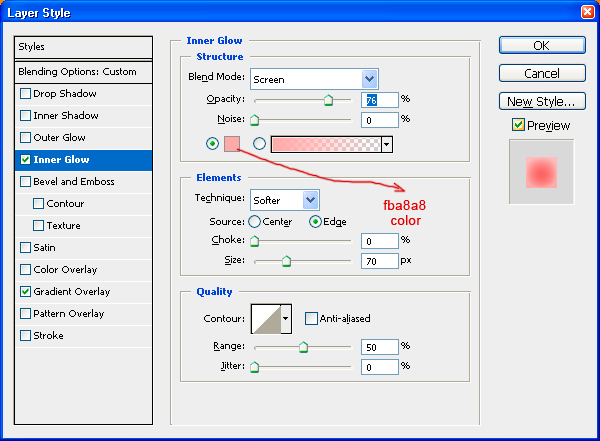
Inner glow: color fba8a8, opacity 76%, blending mode screen.
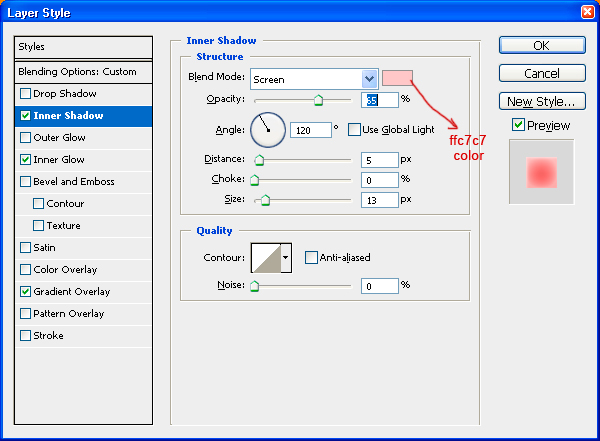
Inner shadow: color ffc7c7, 65% opacity and size 13px.
 title="Create a Unique Burning Text Effect" alt="burn4 Create a Unique Burning Text
Effect" />
 title="Create a Unique Burning Text Effect" alt="burn5 Create a Unique Burning Text
Effect" />
 title="Create a Unique Burning Text Effect" alt="burn6 Create a Unique Burning Text
Effect" />
 title="Create a Unique Burning Text Effect" alt="burn7 Create a Unique Burning Text
Effect" />
Step 4
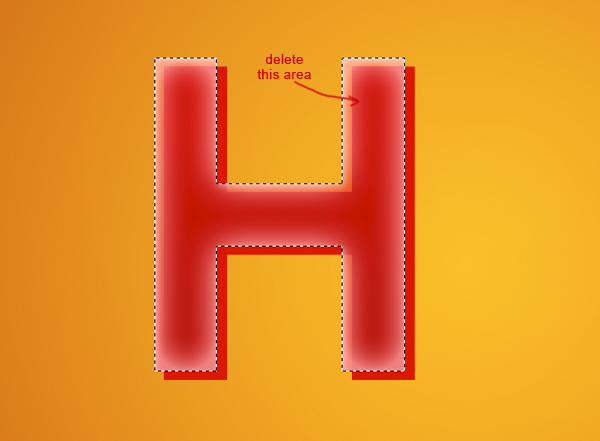
Now duplicate the letter H and name it emboss. Remove all layer style and fill
opacity to 100%. Shift it slightly right and down to give it emboss look. Now ctrl + click
on text layer “H” and press delete to remove unwanted area.
 title="Create a Unique Burning Text Effect" alt="burn8 Create a Unique Burning Text
Effect" />
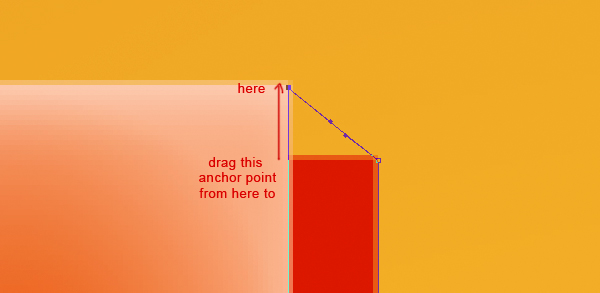
Ctrl + click emboss layer, right click and click on “Make Work Path”. Now select
direct selection tool by pressing A and select anchor points. Adjust them and fill it with
color d90000 to give it a real 3d look.
 title="Create a Unique Burning Text Effect" alt="burn9 Create a Unique Burning Text
Effect" />
Step 5
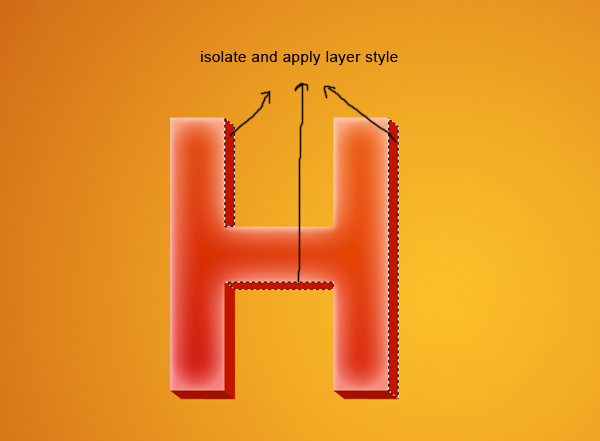
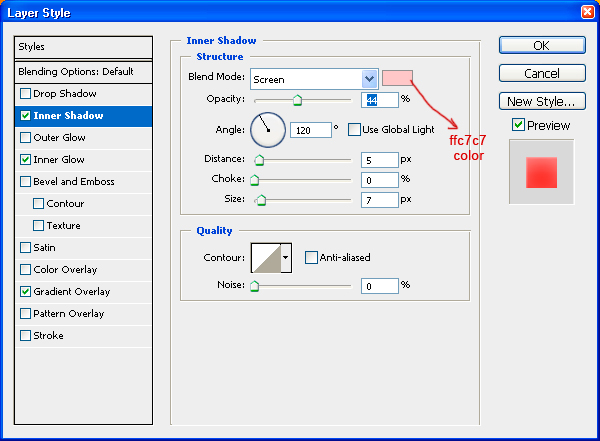
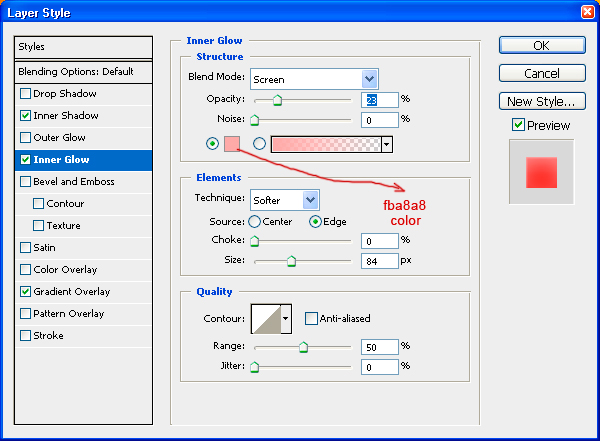
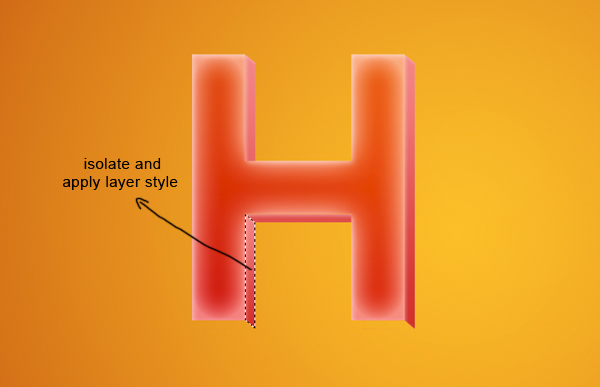
Now isolate all the faces of emboss layer like right face, bottom faces, and apply
these layer style.
 title="Create a Unique Burning Text Effect" alt="burn10 Create a Unique Burning Text
Effect" />
 title="Create a Unique Burning Text Effect" alt="burn11 Create a Unique Burning Text
Effect" />
 title="Create a Unique Burning Text Effect" alt="burn12 Create a Unique Burning Text
Effect" />
 title="Create a Unique Burning Text Effect" alt="burn13 Create a Unique Burning Text
Effect" />
Step 6
Apply layer style same as in step 5 here.
 title="Create a Unique Burning Text Effect" alt="burn14 Create a Unique Burning Text
Effect" />
Step 7
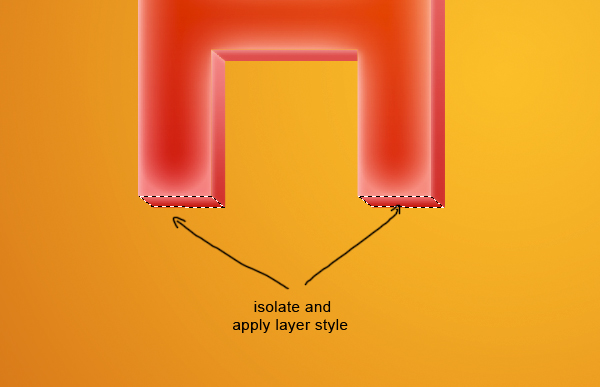
Now select the bottom of letter H and apply gradient overlay same as in step 5 with
90 degree angle.
 title="Create a Unique Burning Text Effect" alt="burn15 Create a Unique Burning Text
Effect" />
Step 8
Repeat step 3,4,5,6 & 7 in letter O and T. The result will look like this.
 title="Create a Unique Burning Text Effect" alt="burn16 Create a Unique Burning Text
Effect" />
Step 9
Merge all layers of text HOT and name it hot. Change its blending mode to overlay.
Duplicate the HOT layer and change blending mode to darken name it HOT 1. Duplicate
this HOT1 layer.
 title="Create a Unique Burning Text Effect" alt="burn17 Create a Unique Burning Text
Effect" />
Step 10
Ctrl + click HOT1 layer, select a soft brush of color black and size 100 px and paint
the shadow of text considering the source of light on top left. Change its opacity to 10%
and blending mode to multiply.
 title="Create a Unique Burning Text Effect" alt="burn18 Create a Unique Burning Text
Effect" />
Step 11
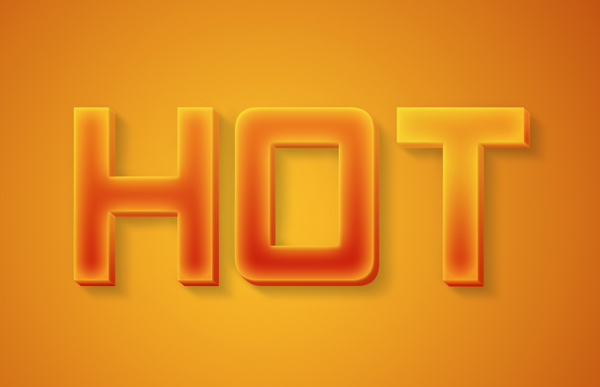
Now ctrl + click letter H, O, and T and save this selection to HOT and apply layer
mask. Create new layer & name it shadow, load selection HOT and fill it with black
color. Apply motion blur of -36 degree and decrease its opacity to 25% with multiply
mode.
 title="Create a Unique Burning Text Effect" alt="burn19 Create a Unique Burning Text
Effect" />
Step 12
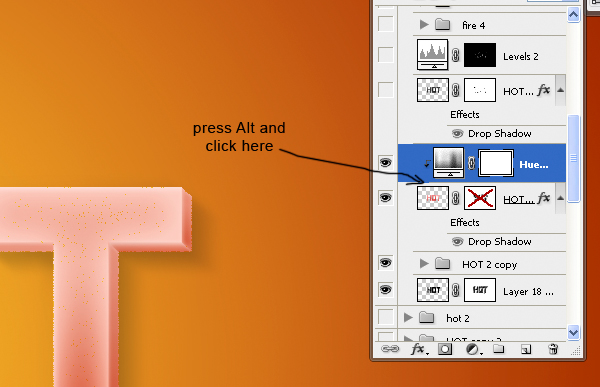
Copy HOT layer and change its blending mode to dissolve. Create a new
Hue/Saturation adjustment layer with setting; Hue 6, Saturation 3, Lightness 0. Create
clip mask by pressing alt + click on between the adjustment layer & HOT
layer.
 title="Create a Unique Burning Text Effect" alt="burn20 Create a Unique Burning Text
Effect" />
Step 13
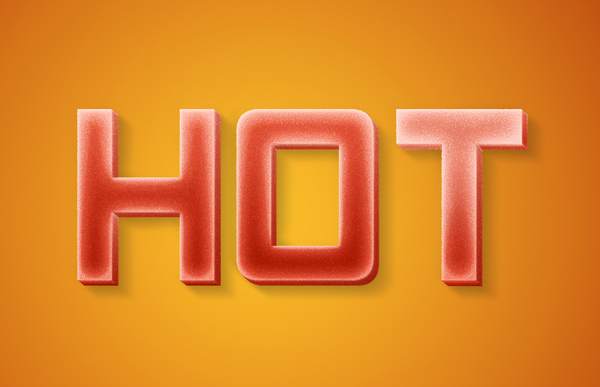
Duplicate HOT layer again and keep it on top go to Filter gallery choose Reticulation
filter with these settings:
Density: 3
Foreground Level: 40
Background Level: 5
Change its blending mode to soft light. Name it R filter.
 title="Create a Unique Burning Text Effect" alt="burn21 Create a Unique Burning Text
Effect" />
Step 14
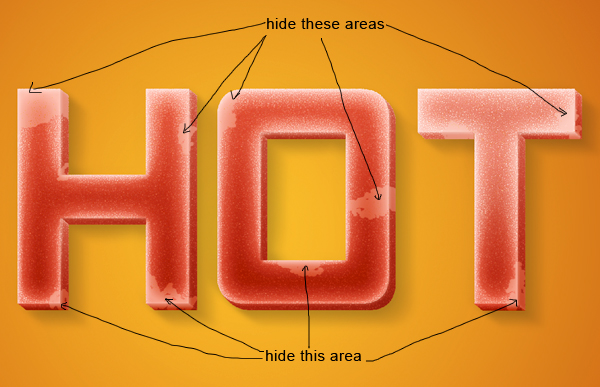
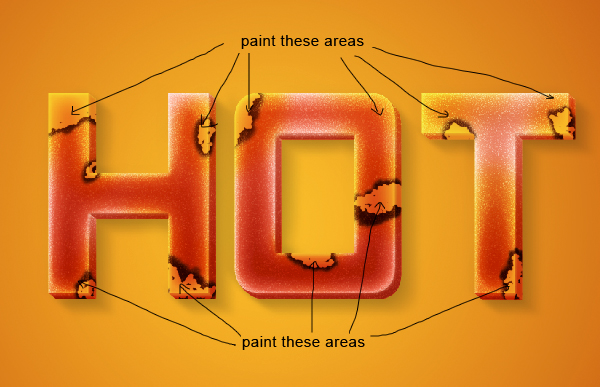
Looks good! Now select brush of 15 px size and 100% hardness, press F5 to access
brush option and increase size jitter to 100% on Shape Dynamics. On the scattering
option keep scatter 90%. Now click layer mask button bottom to layer pallet. Click on the
layer mask, choose black color and hide the area where we’ll burn it.
 title="Create a Unique Burning Text Effect" alt="burn22 Create a Unique Burning Text
Effect" />
Step 15 Create a level adjustment layer below R filter layer with these settings.
 title="Create a Unique Burning Text Effect" alt="burn23 Create a Unique Burning Text
Effect" />
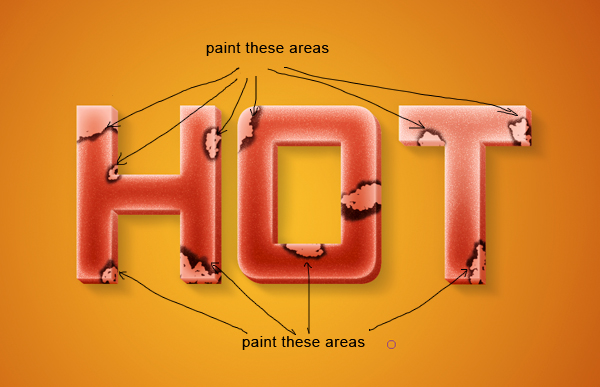
Click on layer mask, press ctrl + I. It will mask everything; now select a soft brush
of size 20, color white, and opacity 70% and paint around hidden areas of R filter layer.
Now ctrl + click on R filter layer and hide selected area. The result will look like
this.
 title="Create a Unique Burning Text Effect" alt="burn24 Create a Unique Burning Text
Effect" />
Step 16
Add layer mask to HOT layer and hide the area outside burned texture. This will give
a warmer feel to the text inside burning texture.
 title="Create a Unique Burning Text Effect" alt="burn25 Create a Unique Burning Text
Effect" />
Step 17
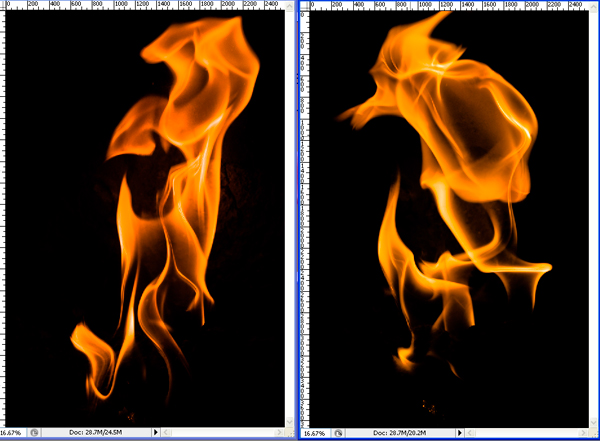
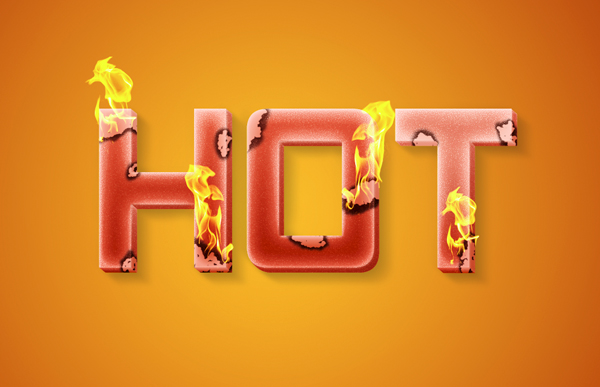
It’s time to add some fire on it. I used images from onclick="javascript:pageTracker._trackPageview('/outgoing/www.sxc.hu');" href="http://www.sxc.hu">sxc.hu
Drag images into document and change color
mode to screen and duplicate image twice to get desired result.
 title="Create a Unique Burning Text Effect" alt="burn26 Create a Unique Burning Text
Effect" />
 title="Create a Unique Burning Text Effect" alt="burn27 Create a Unique Burning Text
Effect" />
Step 18
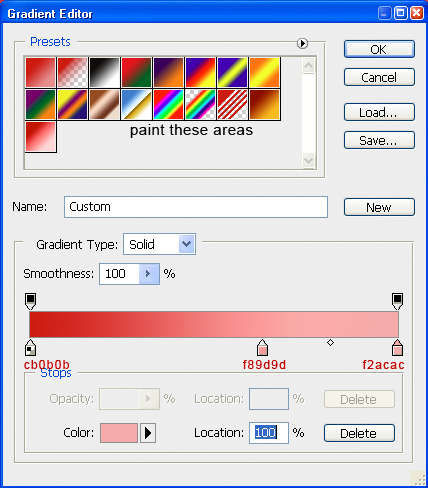
We’re near to complete. Now it’s time to add some finishing. Create a new layer
select gradient tool and use colors cb0b0b, f89d9d and f2acac. Add noise of 3px,
monochromatic, distribution Gaussian. Keep color mode to multiply. Add layer mask and
mask areas around text HOT by a smooth brush.
 title="Create a Unique Burning Text Effect" alt="burn28 Create a Unique Burning Text
Effect" />
 title="Create a Unique Burning Text Effect" alt="burn29 Create a Unique Burning Text
Effect" />
Step 19
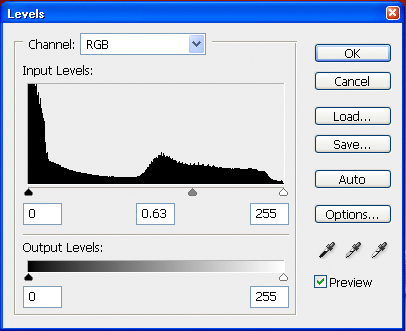
Create a level adjustment layer with these settings. Now we are facing a problem
that is letter H & O is darker then T. To fix this problem add layer mask and hide
area of H & O by painting soft 70% opacity brush.
 title="Create a Unique Burning Text Effect" alt="burn30 Create a Unique Burning Text
Effect" />
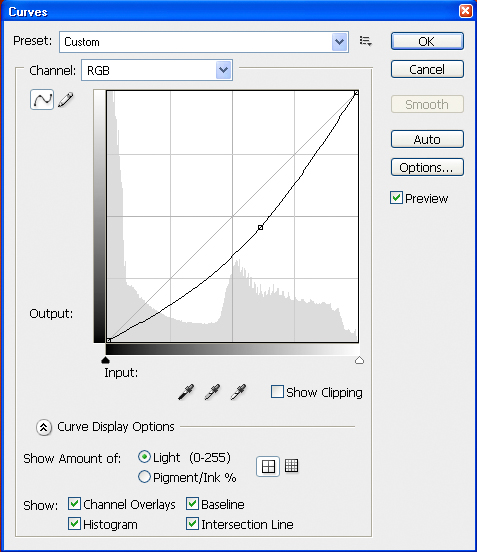
Create curve adjustment layer with input 84 and output 100.
 title="Create a Unique Burning Text Effect" alt="burn31 Create a Unique Burning Text
Effect" />
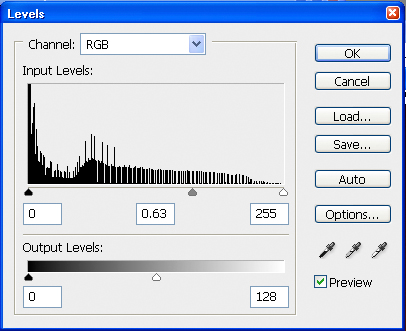
Now create another level adjustment layer with these settings and name it level
2.
 title="Create a Unique Burning Text Effect" alt="burn32 Create a Unique Burning Text
Effect" />
 title="Create a Unique Burning Text Effect" alt="burn33 Create a Unique Burning Text
Effect" />
The result will look like this.
Step 20
Nearly finished the whole effect but not looking very impressive right? Ok, apply
layer mask to “level 2” adjustment layer, select large soft brush with color black and
hide the area around fire. This will add life to the scene because we added fire’s light
refracted on text and texture.
title="Create a Unique Burning Text Effect" alt="burn34 Create a Unique Burning Text
Effect" />
That’s all friends!
And We’re Done!









 <-----Alex qigan buni!


 Hali kup!